
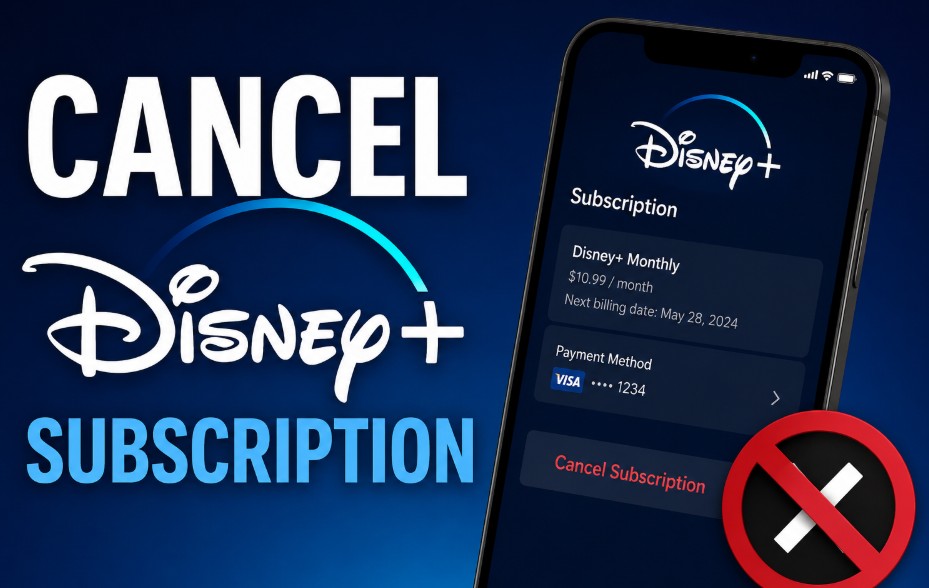
To cancel Disney plus subscription plan in the United Kingdom, log into your account via a web browser, navigate to the Subscription tab under Account Settings, and select the cancellation option.
This action stops the automatic renewal mechanism, meaning your access remains active until the end of your current monthly or annual billing period.
Is cancelling Disney+ easy?
To cancel Disney Plus easily, you must use the platform or third-party service where you originally purchased the subscription.
If you signed up through Disney directly, it takes under two minutes online; if you signed up via a UK telecom provider or app store, you must cancel through their specific dashboard rather than Disney’s app.
Terminating a streaming service contract should theoretically require a single click. In reality, the digital layout and contractual dependencies often make the process feel complex.
Many consumers find themselves caught in a loop where they cannot find the cancellation mechanism. This confusion usually happens because the account is not managed directly by Disney, but is instead linked to a third-party technology ecosystem or a UK telecom bundle.
How do I manage my Disney Plus Subscription to find my biller?
To find your official billing provider, open a secure desktop or mobile web browser and navigate to the official login portal. Go to your primary profile icon, select Account, and look closely at the Subscription header.
Before attempting to close an account, you must identify the financial entity processing your recurring payments. If you skip this assessment, you risk terminating the app profile without actually stopping the monthly direct debit.
| Biller Identified on Screen | Payment Processing Entity | Where to Complete Cancellation |
| Disney (Direct) | Disney+ UK Streaming Services | Official Web Portal via Browser |
| Apple | iTunes / App Store Transactions | iOS Device Subscription Settings |
| Google Play Store Payments | Android Play Store Subscriptions | |
| Sky / O2 / Vodafone | UK Telecom & TV Operators | Provider MyAccount Portal |
If the screen lists an external company under the payment provider details, you must use that specific third-party platform to manage your monthly outflows.
How do I cancel Disney Plus Subscription if billed directly?
To cancel Disney Plus when billed directly, sign in to your account at disneyplus.com on a browser, click your Profile, go to Account, select your plan under Subscription, click Cancel Subscription, and confirm your choice.
Following the formal digital layout ensures your payment details are completely decoupled from active automatic renewal cycles.
Step-by-Step Direct Web Cancellation
- Go to the official website using a desktop computer or smartphone web browser.
- Enter your registered email address and security password to access the profile selection interface.
- Choose the primary account owner profile to unlock administrative access.
- Click on your profile avatar located in the top-right corner of the interface.
- Select Account from the drop-down option menu to open your account settings.
- Look under the Subscription category and click on your active payment tier.
- Click the explicit button labelled Cancel Subscription.
- Complete the brief consumer feedback survey regarding your reasons for leaving the service.
- Click the final confirmation button to officially lock in your termination status.
How to cancel Disney Plus Subscription on Apple or Android phones?
To cancel Disney Plus on a phone, navigate to your device’s built-in storefront app, Settings > Apple ID > Subscriptions on iPhone, or Google Play Store > Profile > Payments & Subscriptions on Android, locate Disney Plus, and select Cancel.
Apple phones
Mobile subscription loops are a frequent source of consumer confusion. When you register for the service on an iOS device, the payment relationship shifts directly to Apple’s transactional ecosystem rather than the streaming operator itself.
To stop these payments, you must bypass the streaming app completely and use the system settings built into your iOS software.
- Open the native Settings application on your iPhone or iPad.
- Tap your personal name block located at the very top of the settings directory.
- Select the Subscriptions option from the account management list.
- Locate and tap the active streaming icon within your services overview.
- Tap the red Cancel Subscription prompt visible on the device screen.
- Confirm the transactional change to update your Apple ID ledger.
Android phones
For Android device users, registrations processed through in-app purchases are bound to your Google account infrastructure.
Deleting the application from your phone handset will not alert the payment system to halt your recurring subscription fees.
When reviewing decisions on digital accounts, verifying your active payment status inside the official digital marketplace is the safest approach.
- Open the native Google Play Store application on your mobile device.
- Tap your circular profile icon situated in the upper right-hand corner.
- Select Payments & subscriptions from the primary menu list.
- Tap on the Subscriptions option to review your recurring digital accounts.
- Select the specific entertainment service provider from your active lineup.
- Tap the Cancel subscription management command at the bottom.
- Select a primary reason for removal and tap the final confirmation link.
How to cancel Disney Plus Subscription via UK third-party providers?
To cancel Disney Plus via a UK third-party provider, log directly into the account portal of your provider (such as Sky, Virgin Media, EE, or Roku), open your active add-ons or entertainment package overview, and remove the Disney Plus item.
Many households in the UK secure access to premium streaming entertainment through home media packages. Just as viewers frequently look up how to cancel a TV Licence to trim down their monthly household bills, managing your digital subscriptions requires knowing who processes your payments.
If your service access is bundled into a television or broadband plan, the cancellation framework shifts to your respective entertainment provider’s portal.
| Provider / Platform | Cancellation Management Protocol | Expected Processing Window |
| Roku |
On your Roku Device: Highlight the Disney+ app icon, press the Asterisk (*) button on your remote, select Manage subscription, and click Cancel subscription. |
Processes at the end of the active billing cycle. |
| Sky TV | Navigate to the My Sky app account page or use your Sky TV box settings menu under the Shop portal. | Processes at the end of the active billing cycle. |
| Virgin Media | Access your online My Virgin Media account portal, open the Entertainment Services or apps tab, and select Cancel Subscription. | Requires up to 24 hours to sync with external servers. |
| EE | Log into your online EE account portal or app, open the Add-ons directory, and delete or toggle off the active Disney+ package option. | Removals take effect at the next monthly invoice date. |
Even if Roku processes your payments, Disney+ sometimes manages the subscription database directly for certain accounts. If you don’t see the Manage Subscription option on your Roku device or web dashboard, you must log into disneyplus.com via a web browser to complete your cancellation.
Why can’t I cancel my Disney+ subscription?
If you cannot cancel Disney Plus, it means you are either logged into a secondary profile without administrative privileges, or your plan is managed by a third-party biller (like Apple, Google, or Sky) whose platform you must use to cancel.
- Cause A: Account managed by a third party. Solution: Check your bank statements for the specific payment route and clear it directly on their portal.
- Cause B: Browser cache or script error. Solution: Open an Incognito / Private window, re-login to the official site, and attempt the process again.
This issue frequently happens when users log in with secondary profile credentials rather than the primary account owner’s administrative email.
It can also occur when active ad-blocking software or outdated browser cache files stop critical account management scripts from loading correctly on the page.
How do I call Disney Plus to cancel my subscription?
To call Disney Plus customer support to cancel your subscription, dial the official UK helpline at 0808 101 2142 or use the live chat feature on the official Disney Plus Help Centre web page.
The customer service department operates a dedicated helpline alongside a real-time web chat system.
To speed up the process, make sure you have your account creation email address, your registration date, and your current billing statement details ready before you reach out to an agent.
How to get a refund after cancelling the subscription?
To get a refund after cancelling Disney Plus, you must request it via live customer support within 14 days of purchase. However, if you stream any video content during this 14-day window, your right to a full refund is legally waived.
Understanding your 14-day statutory cooling-off rights
UK consumer protection regulations offer specific cancellation rights for digital purchases. Under the Consumer Contracts Regulations, buyers have a statutory 14-day cooling-off window to cancel a digital service agreement.
However, this protection comes with a major limitation: if you log into the service and stream content during those first 14 days, you explicitly waive your right to a full refund.
The platform will deduct a proportional fee for the days the service was active, or deny the refund request entirely if a movie or episode was played.
How to cancel an annual Disney Plus subscription for a partial refund?
To cancel an auto-renewed annual Disney Plus plan for a partial refund, contact Disney Plus customer help desk support directly.
Under UK consumer rules, if an annual plan auto-renews into a second year, you can cancel it with one month’s notice and claim a pro-rated refund.
This allows you to claim a partial refund for any remaining, unused full months left on your contract. To process this exception, you must contact their customer help desk directly, as the automated online system is not set up to calculate these partial refunds.

Can you pause your Disney Plus subscription instead of cancelling?
To pause your Disney Plus subscription instead of cancelling, log into your account via a web browser, go to Account > Subscription, select Pause Subscription, and choose your pause duration. This is only available if you are billed directly by Disney+ on a monthly plan.
Choosing to pause stops future billing immediately, and your customised user profiles, viewing histories, and personal algorithm preferences will remain saved on their servers.
This gives you a clear window to restart your membership down the line without losing your setup, though you will lose access to content during the pause duration.
Conclusion
Successfully managing your streaming subscriptions comes down to knowing exactly who processes your payments.
Whether you handle your bill directly through the official website or manage it through a UK telecom bundle like Sky or O2, taking a moment to check your subscription status ensures you can stop auto-renewals without unexpected fees.
Once your cancellation is confirmed, your service will remain fully active until the end of your current billing period.
For budget-conscious viewers, using a strategy of subscription rotation, where you subscribe to a service for a single month to watch specific content and then cancel, is an excellent way to keep your monthly entertainment costs down.
FAQ about cancel Disney Plus subscription
How to cancel automatic payment in Disney Plus without breaking my contract?
Log into your administrative account panel via a secure web browser, open your payment settings, and select the cancellation option. This stops future automatic direct debits while keeping your access live until the end of your paid period.
Does cancelling Disney Plus stop billing immediately or run to the month’s end?
No, it does not cut off immediately. The system halts future automatic billing cycles upon submission, but your actual service access runs until the final day of your current monthly or annual invoice window.
Is deleting my Disney Plus account the same as cancelling a subscription?
No. Deleting the application or removing your user profile does not cancel your financial contract. You must explicitly cancel your active subscription to stop payments before you can safely delete your overall account data.
Why won’t Disney Plus let me delete my account completely?
The system blocks complete account deletion requests if there is still an active subscription tied to the profile. You must completely stop all automated billing agreements and wait for the final cycle to expire before the system allows full deletion.
When can I cancel my Disney Plus subscription to maximise my remaining days?
You can initiate the termination process at any point during your active billing cycle. Because the platform keeps your access live until the end of your paid period, cancelling early protects you from accidental renewals while maximising your remaining days.
What happens to my watch history, profiles, and MyDisney account information?
Your historical watch logs and user profiles remain securely stored in their database for a limited transition period. If you choose to reactivate your membership using the same login credentials later on, your personal configuration details will be restored.
Why are people cancelling their Disney+ subscription?
Many UK consumers are re-evaluating their household expenses due to rising living costs and regular increases in streaming plan prices. Many viewers now choose to rotate their active entertainment services based on when specific shows are released.
